
 The following MUST be completed in order to proceed with iCoreRx: Final Steps for EPCS Registration with ID.me
This MUST be completed by the Provider.
Provider MUST complete iCoreRx: ID.me setup for EPCS Registration
Provider MUST be Granted and Authorized by iCore
Provider received an email from iCore stating they were successfully Granted and Authorized to finalize their Provider EPCS Registration.
| EXTREMELY IMPORTANT: |
|---|
| Please be aware that the EPCS Registration process is complex and, if not executed correctly, could lead to delays or a block from SureScripts. Resolution may take considerable time. To prevent such issues, you might consider scheduling a guided walkthrough to guarantee a successful outcome.
Click Here to schedule an appointment.
|
Provider Finalizes their EPCS Registration
The Provider will not be able to prescribe controlled substances until the following steps are completed.
1. The Provider will log into iCoreRx.
2. Select Patient, and click the Rx button or iCorePrescribe.
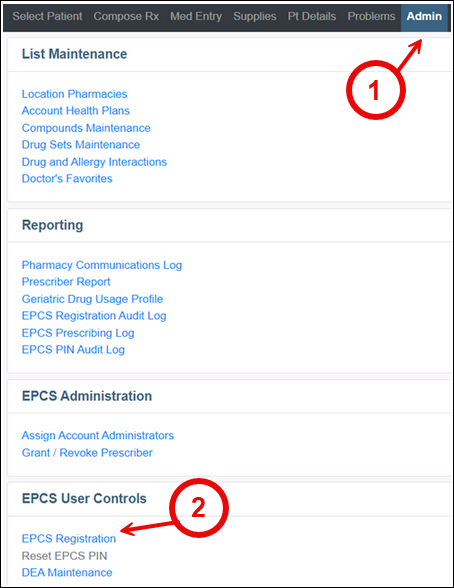
3. Click on the Admin tab.
4. Select EPCS Registration, located in the bottom left corner under the EPCS User Controls section.
- Push Notification: Sends a notification to your cellphone; click Yes to sign and approve the Rx you are transmitting.
- Code Generator: Open the ID.me app on your cellphone to retrieve the 6-digit one-time passcode. Enter passcode to sign and approve the Rx you are transmitting.
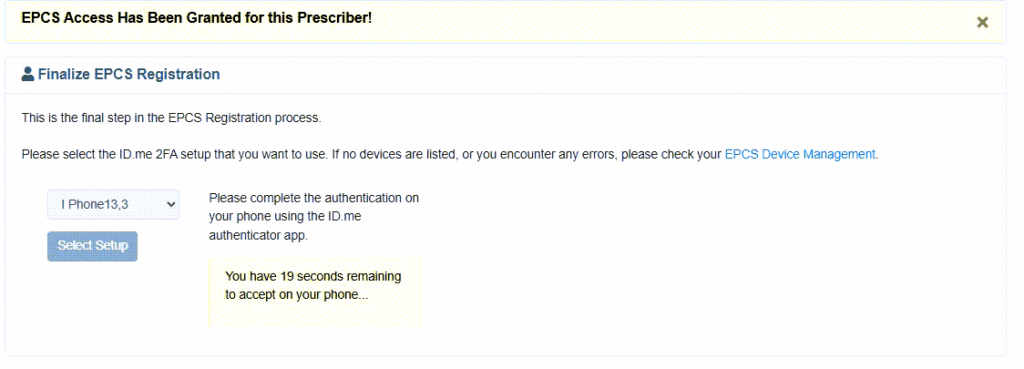
5. Click the Select Setup drop-down to choose your ID.me App setting on your cellphone.
Depending on how you setup your ID.me App for your signature, you will have one of or both of the following options.
6. Click the blue Select Setup button.
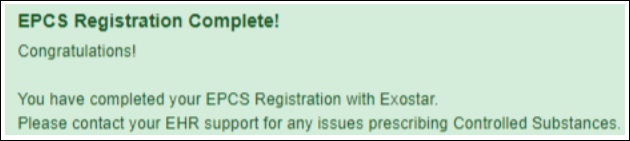
7. Provider can now prescribe controlled substances from this new location.