
This guide will navigate you through common issues with ID.me
- Unable to sign into ID.me
- MFA Recovery Process
- Multiple ID.me Accounts or Wallets
- Contact iCore Implementation Specialist to open an ID.me Ticket
1. Verify you are using the correct email address for your PERSONAL ID.me account.
2. Forgot your password? Click Forgot Password to reset your password
3. Trouble with MFA or 2FA? Click MFA Recovery Process to update MFA options
If you are unable to login to your wallet or lost access to use MFA.
1. Sign in to ID.me
2. From the “Complete Your Sign In” screen, select the MFA recovery process link at the bottom.
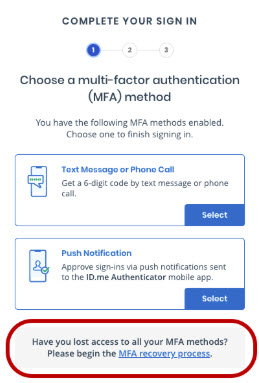
3. Follow the prompts to Confirm ownership of your wallet. For example, take a live selfie, join a video call, confirm your email or personal information, or upload your identity document.
4. Follow the prompts to Set up a new MFA method. You must complete this step within 30 minutes of confirming your wallet ownership.
Use the steps from above to “Set up Push Notification or Code Generator as an alternate MFA / 2FA option”
If you set up a new ID.me account and try to verify your identity, you might see a message saying, “You have an existing account.” This means you’ve already verified your identity with another account.
If you are experiencing any errors with setting up your ID.me account or while verifying your identity with ID.me.
To resolve please use one of the following methods to contact an iCore Implementation Specialist:
- Email an iCoreConnect Implementation Specialist to Grant EPCS Access
- Schedule an appointment with iCoreConnect Implementation Specialist
- Please email the below information to implementation@icoreconnect.com
Practice Name (where you started your EPCS registration)
Provider First Name
Provider Last Name
Provider NPI#
The e-mail address you’ve registered with ID.me:
The email address you’re attempting to use (if different from above):
Which steps you’re getting “stuck” at or what you’re trying to do:
Any error messages you’re seeing:
Phone number:
- An iCore Implementation Specialist will review your account, open a support ticket with ID.me on your behalf, and contact you back via email or by phone with the next steps.
- An iCore Implementation Specialist will maintain contact with you until the issue has been resolved. Please note that you may receive an email from an ID.me support team member as well if they need additional information from you.
- Once the issue has been resolved, an iCore Implementation Specialist, will contcat you by phone or email to complete the Final Steps of your EPCS Registration. After you have completed these final steps, you will be able to prescribe controlled substance prescriptions.
- An iCoreConnect Implementation Specialist can assist with registration errors, which helps them see first-hand what’s going on and collect additional data if necessary.
- If further escalation is needed, they can open an ID.me support ticket on your behalf, and contact you back via email or by phone with the next steps.
- An iCore Implementation Specialist will maintain contact with you until the issue has been resolved. Please note that you may receive an email from an ID.me support team member as well if they need additional information from you.
- Once the issue has been resolved, an iCore Implementation Specialist, will contcat you by phone or email to complete the Final Steps of your EPCS Registration. After you have completed these final steps, you will be able to prescribe controlled substance prescriptions.
- Assist you with any other questions or concerns.
| ICoreConnect Contact Information: |
|---|
| You can contact an Implementation Specialist directly via email to implementation@icoreconnect.com, or call 888-810-7706. |