1. Home
  2. iCoreRx
  3. Prescriber
  4. iCoreOS: Manage MFA or 2FA Options – ID.me
  1. Home
  2. iCoreRx
  3. Admin / Account Management
  4. iCoreOS: Manage MFA or 2FA Options – ID.me

Set up Push Notification or Code Generator as an alternate MFA / 2FA option

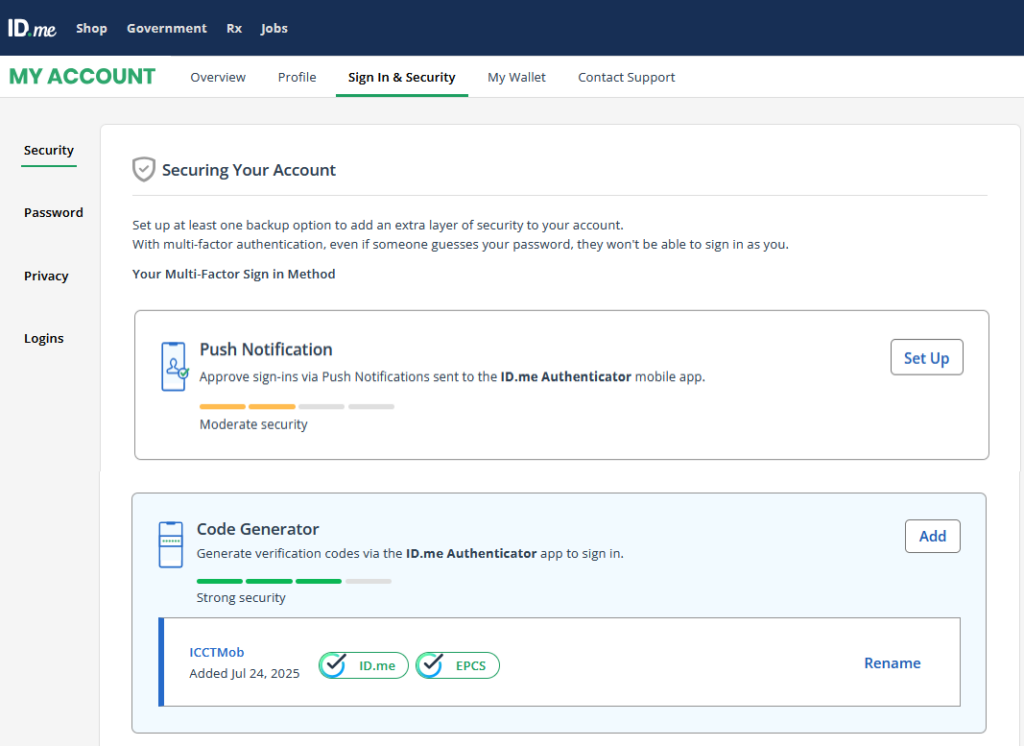
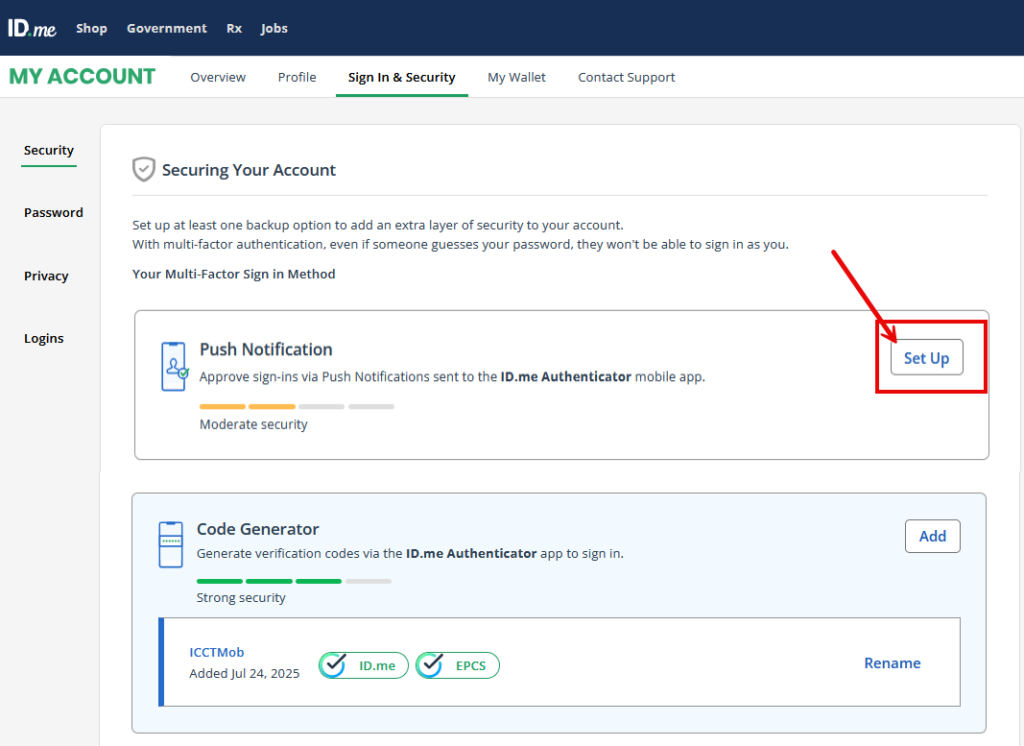
1. Select the Set Up button to activate a new or alternative MFA or 2FA option when signing your Controlled Substance prescriptions.

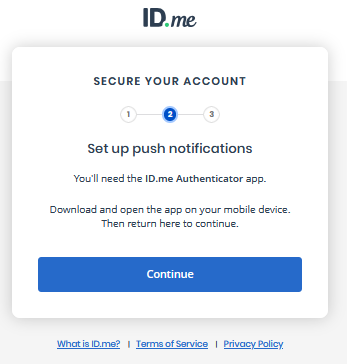
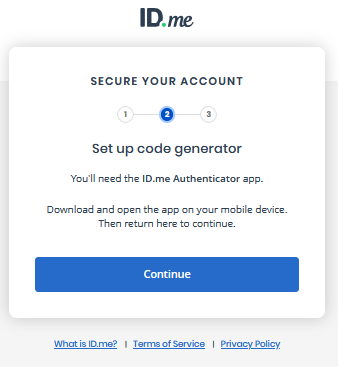
2. A new window will open, click Continue.

Enable Push Notification.

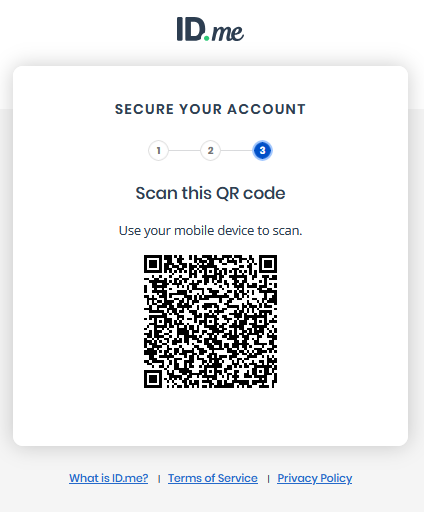
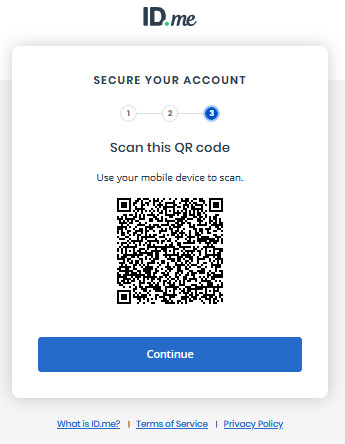
3. Scan the QR code with your smartphone (cellphone).

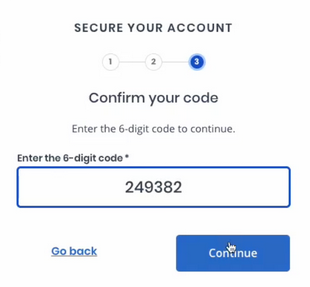
4. Follow the steps on your smartphone (cellphone).

  • If you do not have the ID.me Authenticator app installed, it will direct you to your app store to download the app.
  • Once you have the ID.me Authenticator app installed, scan the QR Code again, it will direct you through the remaining steps to enable.
  • If have the ID.me Authenticator app installed, it will direct you through the remaining steps to enable.

Enable Code Generator.

3. Scan the QR code with your smartphone (cellphone).

4. Follow the steps on your smartphone (cellphone).

  • If you do not have the ID.me Authenticator app installed, it will direct you to your app store to download the app.
  • Once you have the ID.me Authenticator app installed, scan the QR Code again, it will direct you through the remaining steps to enable.
  • If have the ID.me Authenticator app installed, it will direct you through the remaining steps to enable.

Rename your MFA / 2FA option

If you have more than one MFA / 2FA option or just want to change the name to something more recognizable, follow the steps below:

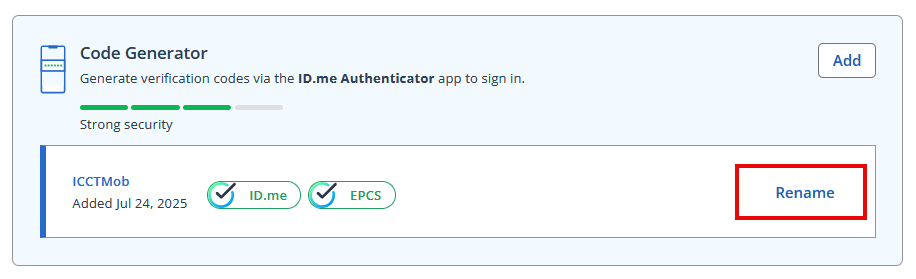
1. Select the Rename button on the right side of the MFA / 2FA option you wish to rename.

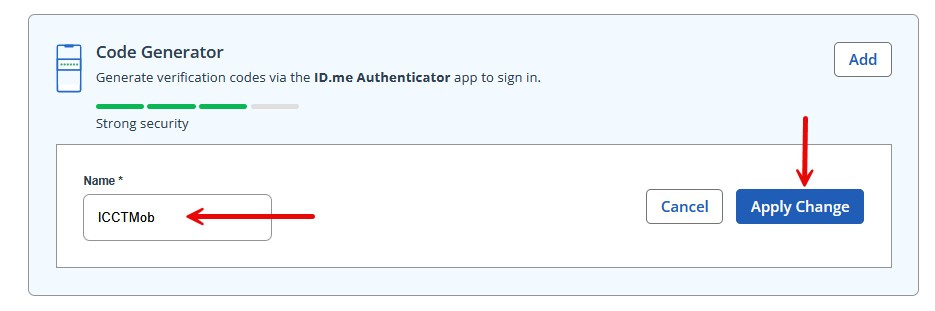
2. Key in the new name inside the Name* field. Select the Apply Change button on the right.

* Steps are the same for either the Push Notification or Code Generator.

* Just be sure if both are enabled, name them something different so you can tell them apart when selecting on the transmit page.

ReSync your MFA / 2FA option

If your MFA / 2FA quit working, you will need to resync your device to your ID.me app.

1. Select the Add button on the right side of the MFA / 2FA option that is no longer working.

2. Scan the QR code with your smartphone (cellphone) and follow the prompts.

3. Be sure not to name it the same as the previous device. If you did my mistake, you can still tell them apart by the “Added Date” below the device name.

4. Remove the OLD device by clicking the Trash Can icon on the right.

* images not currently available.

Add your new Smartphone (cellphone)

Got a New Phone or a new number? Follow the steps below to add and sync your new phone:

1. Select the Add button on the right side of the MFA / 2FA option that is no longer working.

2. Scan the QR code with your smartphone (cellphone) and follow the prompts.

3. Be sure not to name it the same as the previous device. If you did my mistake, you can still tell them apart by the “Added Date” below the device name.

4. Remove the OLD device by clicking the Trash Can icon on the right.

* images not currently available.

Remove your MFA / 2FA option

Got a New Phone or a new number? Follow the steps below to add and sync your new phone:

1. Select the Add button on the right side of the MFA / 2FA option that is no longer working.

2. Scan the QR code with your smartphone (cellphone) and follow the prompts.

3. Be sure not to name it the same as the previous device. If you did my mistake, you can still tell them apart by the “Added Date” below the device name.

4. Remove the OLD device by clicking the Trash Can icon on the right.

* images not currently available.

Troubleshoot Code Generator MFA / 2FA option

I have several codes in the app

If you delete and re-add the code generator MFA on your device, you may see more than one set of codes in the app. To avoid confusion, we recommend using the most recently added code and deleting older codes.

1. Open the ID.me Authenticator app.

2. Find the code you want to delete, swipe left, and select Delete.

3. Confirm by selecting Delete again.

App says “You do not have multi-factor authentication enabled”

If you open your app and get an error message that reads “You do not have multi-factor authentication enabled”. You will need to add a MFA or 2FA option to your device.

1. Follow the steps laid out above to “Set up Push Notification or Code Generator as an alternate MFA / 2FA option”

MFA recovery steps if you Lost Access or Cannot login

If you are unable to login to your wallet or lost access to use MFA.

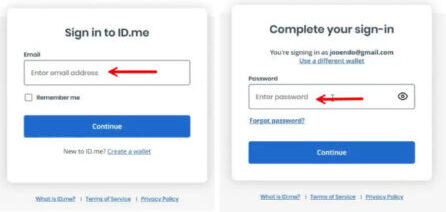
1. Sign in to ID.me

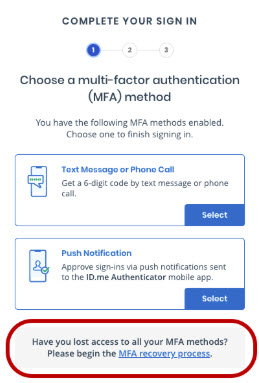
2. From the “Complete Your Sign In” screen, select the MFA recovery process link at the bottom.

3. Follow the prompts to Confirm ownership of your wallet. For example, take a live selfie, join a video call, confirm your email or personal information, or upload your identity document.

4. Follow the prompts to Set up a new MFA method. You must complete this step within 30 minutes of confirming your wallet ownership.

Use the steps from above to “Set up Push Notification or Code Generator as an alternate MFA / 2FA option”


iCoreConnect Contact Information:

  • By Phone: 888-810-7706, option 2
  • By Email: support@icoreconnect.com
  • From your iCoreOS: Click the headsetEditicon, in the top-right corner, to open a support ticket


Updated on November 24, 2026

Was this article helpful?

Related Articles

Need Support?
Can't find the answer you're looking for?
Contact Support