
 The following MUST be completed in order to proceed with iCoreOS: eRx+EPCS Registration, Self-Guided – Final Steps
This MUST be completed by the Provider.
Provider MUST complete iCoreOS: eRx+EPCS Registration, Self-Guided.
Provider MUST be Granted and Authorized by iCore
Provider received an email from iCore stating they were successfully Granted and Authorized to finalize their Provider eRx+EPCS Registration.
| EXTREMELY IMPORTANT: |
|---|
| Please be aware that the eRx+EPCS Registration process is complex.
If not executed correctly, could lead to delays or a block from SureScripts. Resolution may take considerable time. To prevent such issues, you might consider scheduling a guided walkthrough to guarantee a successful outcome. Click Here to schedule an appointment. |
Provider Finalizes their EPCS Registration
1. Once you receive the email from iCore Implementation Specialist, you will need to follow the below steps to finalize your EPCS Registration.
Set Transmit PIN
2. Search and Select your patient from the schedule or patient database
- Click the Prescribe or green pill button to open patient record.
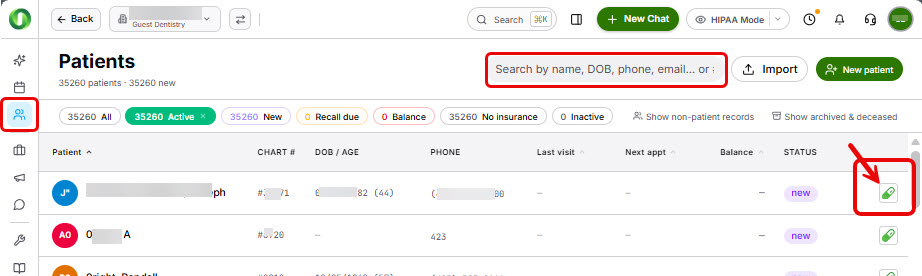
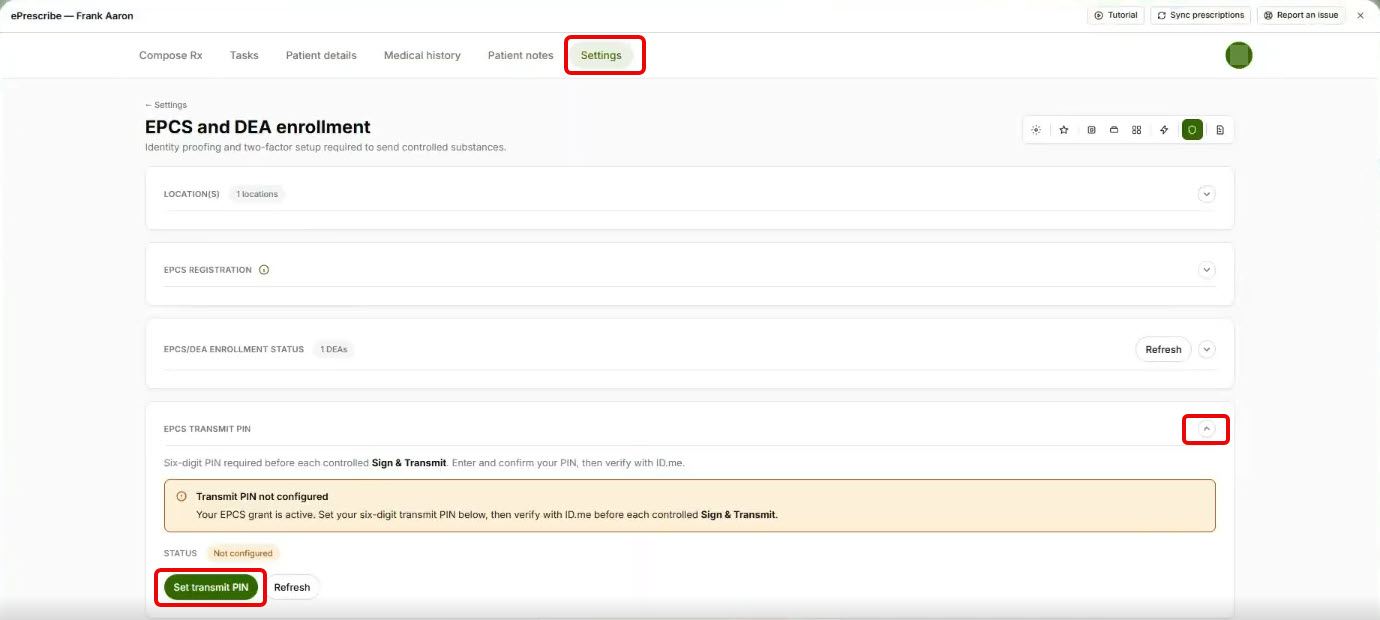
3. Go to the Settings tab.
4. Open the EPCS and DEA enrollment module.
5. Open the EPCS Transmit PIN module.
6. Click the green Set Transmit PIN button, on the bottom-left corner.
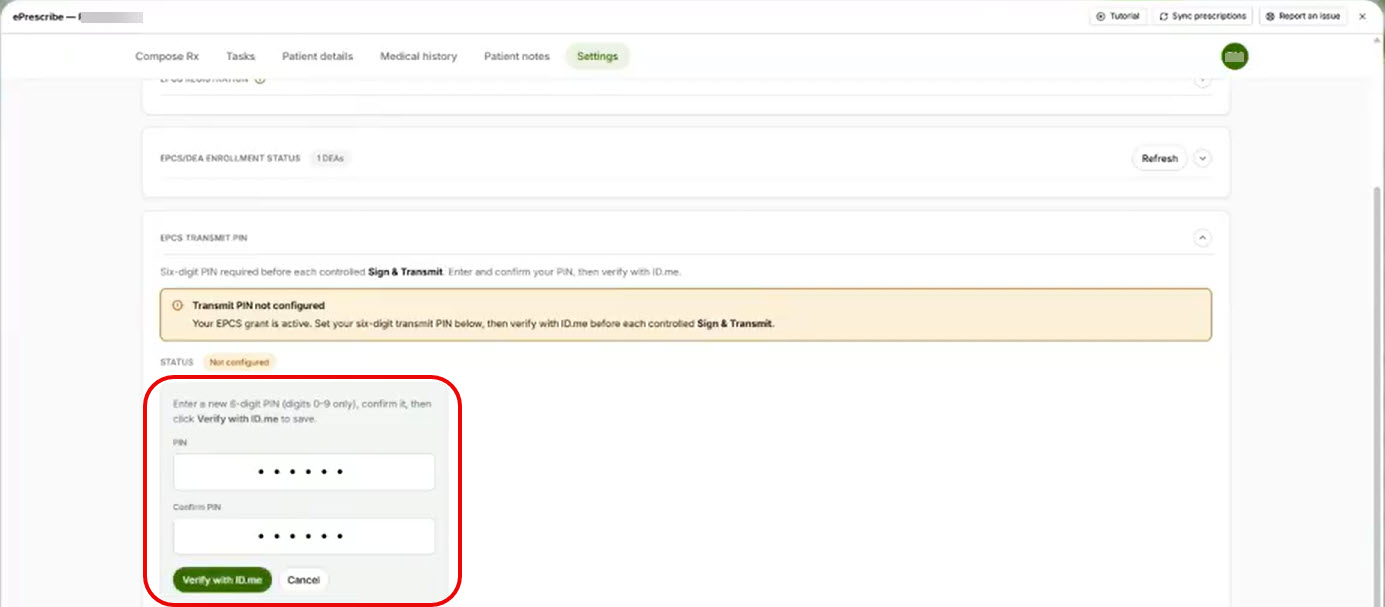
7. Create personal Transmit PIN.
- Enter a new 6-digit PIN (digits 0-9 only).
- Confirm 6-digit PIN
- Click the green Verify with ID.me button
Next Step: Start Prescribing!
How to write and transmit prescriptions in iCoreOS
- Click the Academy
 icon, from the left-menu, for the Rx Training video.
- REview step-by-step guides:
Important Contact information
- By Phone: 888-810-7706, option 2
- By Email: support@icoreconnect.com
- From your iCoreOS: Click the headset
 icon, in the top-right corner, to open a support ticket