THIS IS ONLY NECESSARY FOR DOCTORS WRITING CONTROLLED SUBSTANCES.
NOTE: This MUST be done for every additional location you would like to prescribe from.
Once a Provider has completed EPCS Registration and if they practice at multiple locations, the Provider will need to attach their EPCS Registration to all alternate locations. This can be done in 4 easy steps:
- Step 1: Getting started
- Step 2: Assign Account Administrator
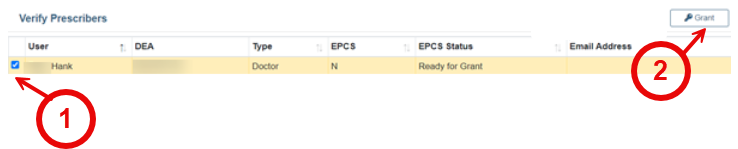
- Step 3: Grant or Confirm Provider
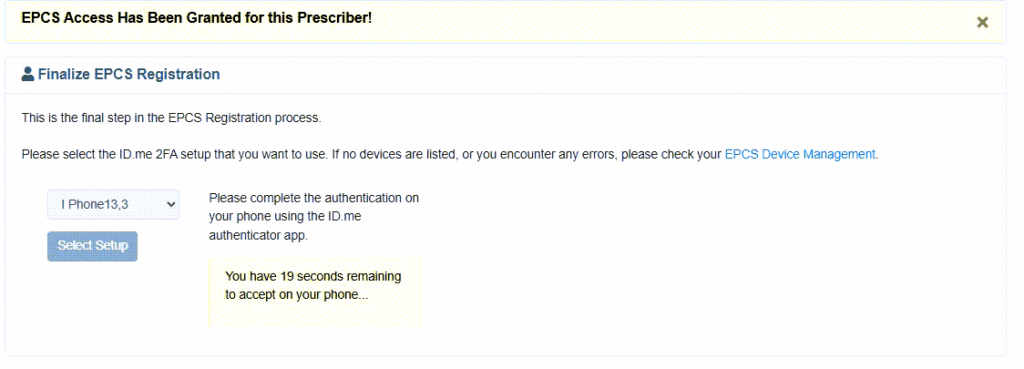
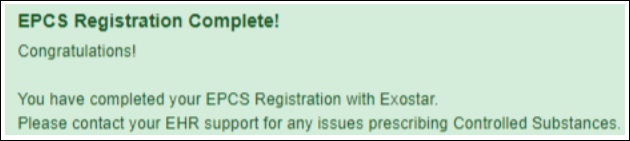
- Step 4: Provider Finalizes their EPCS Registration to the location
To view this article as a PDF please click HERE.
Step 1: Getting Started
1. Log in to your iCoreRx website and access the e-prescribing site with your New Location selected.
How to Change Your Prescribing Location on Semi-Integrated Sites (Standalone)
2. Select a Patient.
3. Select the Sign up for eRx with EPCS.
4. Select option 4. EPCS Registration.
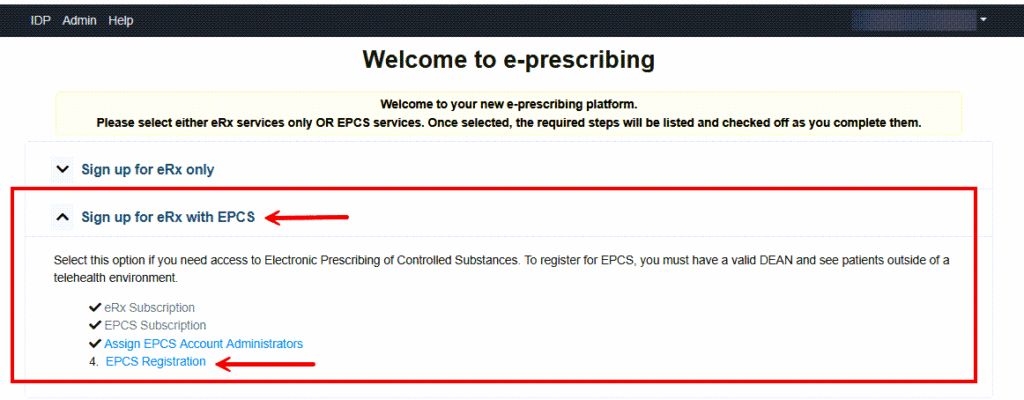
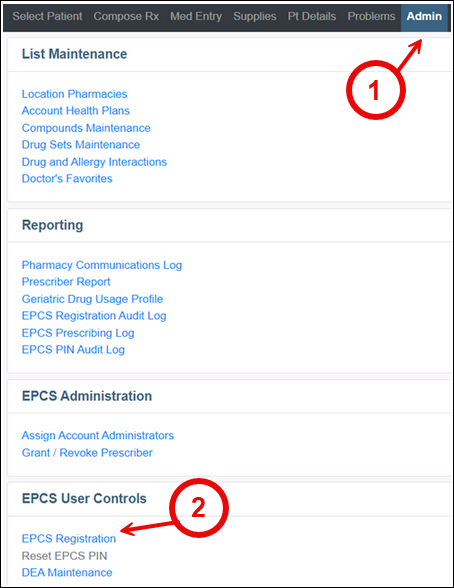
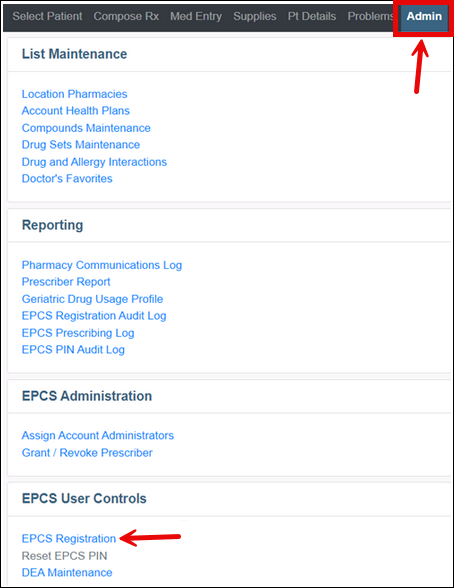
If you do not have this option, proceed to the Admin Tab and select EPCS Registration.
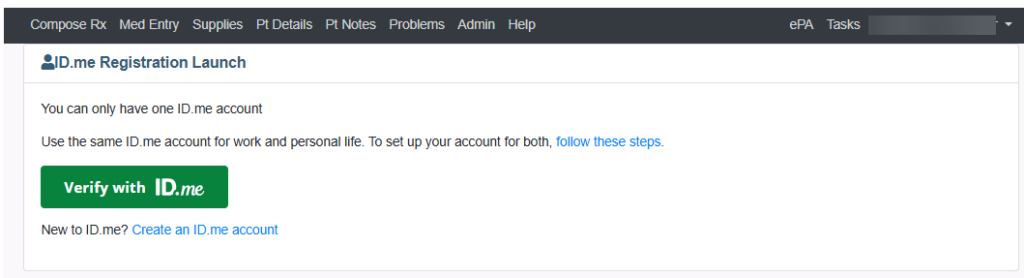
5. Click the green Verify with ID.me button.
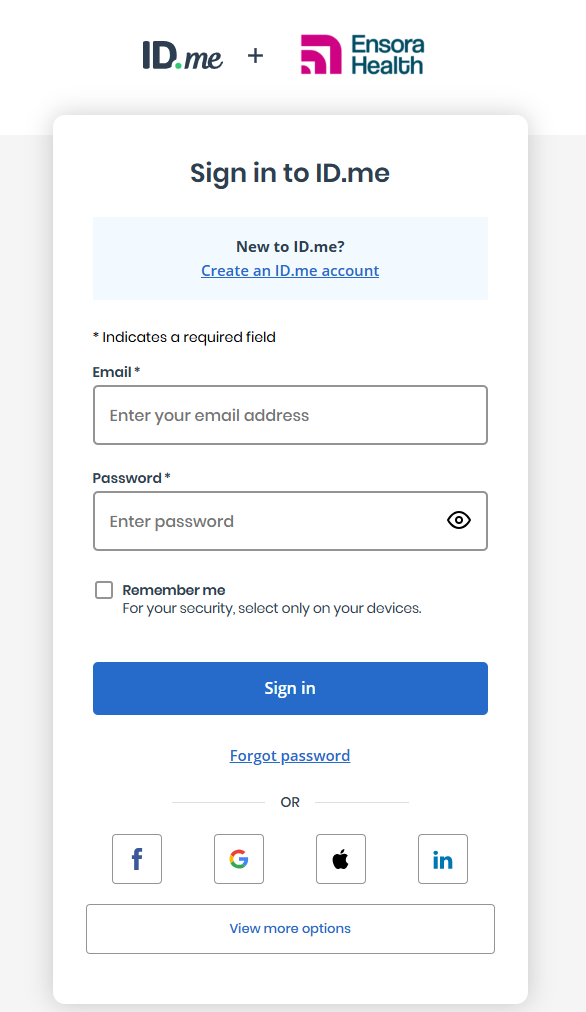
6. Sign into your ID.me Account.
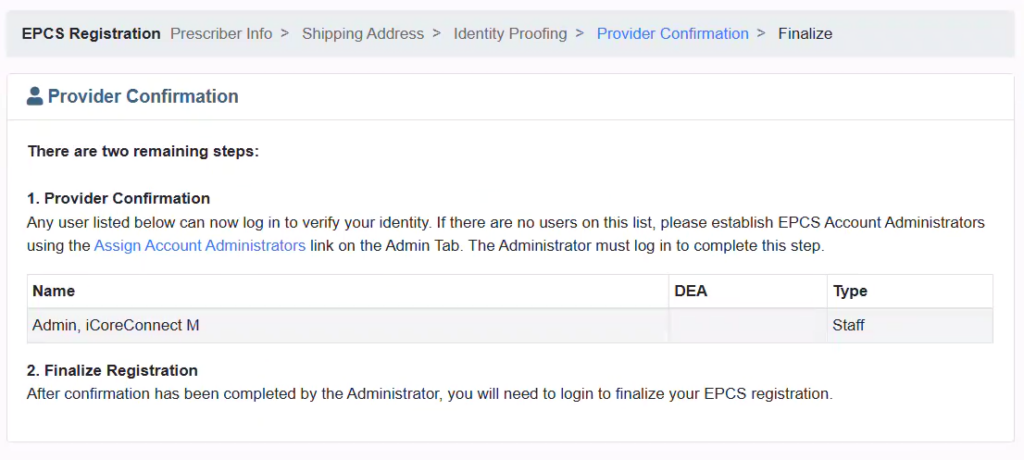
7. Once you reach the Provider Confirmation screen, proceed to Step 2.
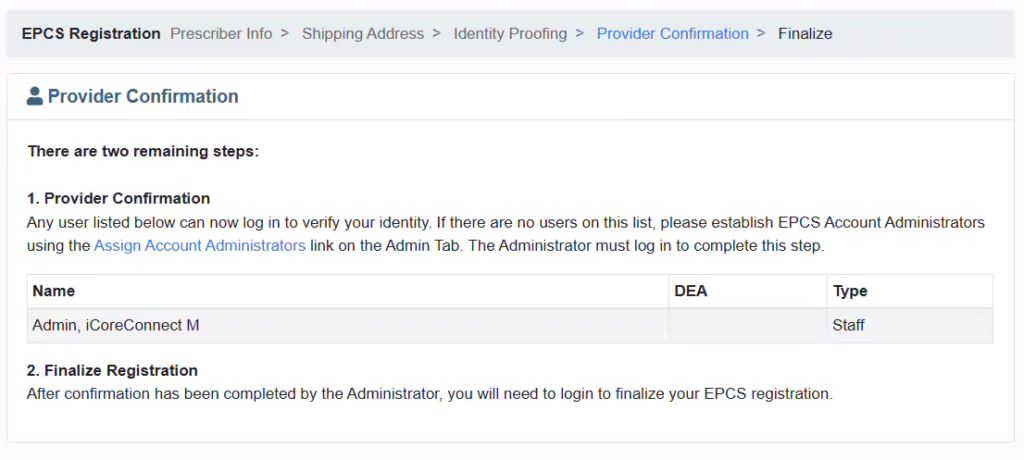
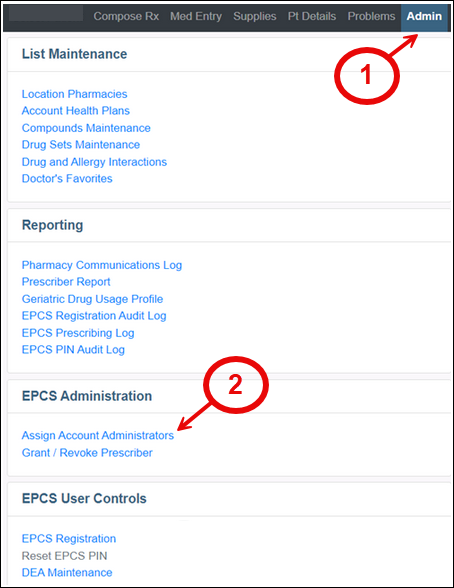
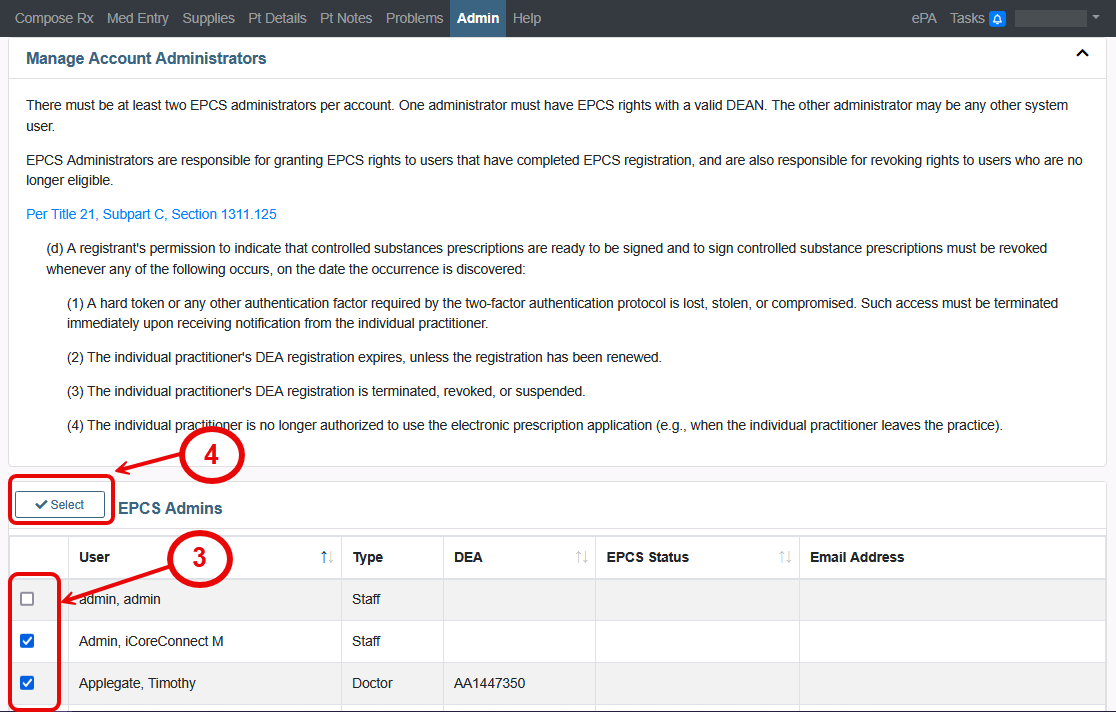
Step 2: Assign Account Administrators
The next step, Grant and Authorize, is to be performed by an iCore Implementation Specialist or you can assign an “In House” Account Administrator.