1. Home
  2. iCoreRx
  3. Prescriber
  4. iCoreRx: EPCS Device Management – ID.me
  1. Home
  2. iCoreRx
  3. Admin / Account Management
  4. iCoreRx: EPCS Device Management – ID.me

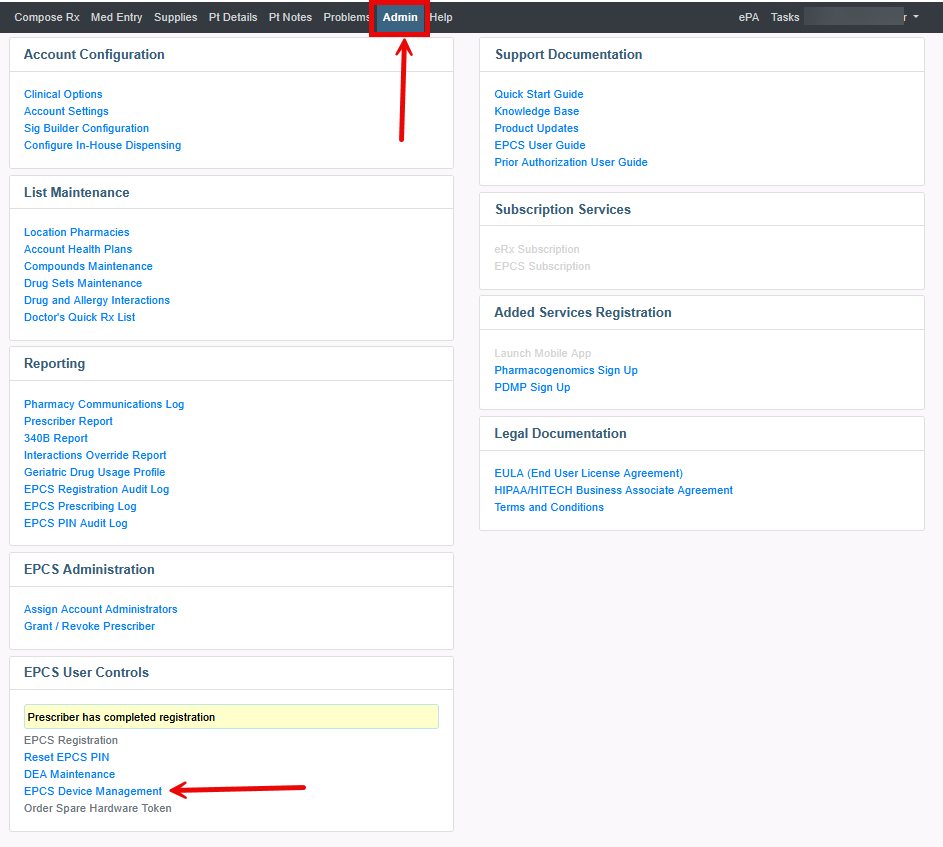
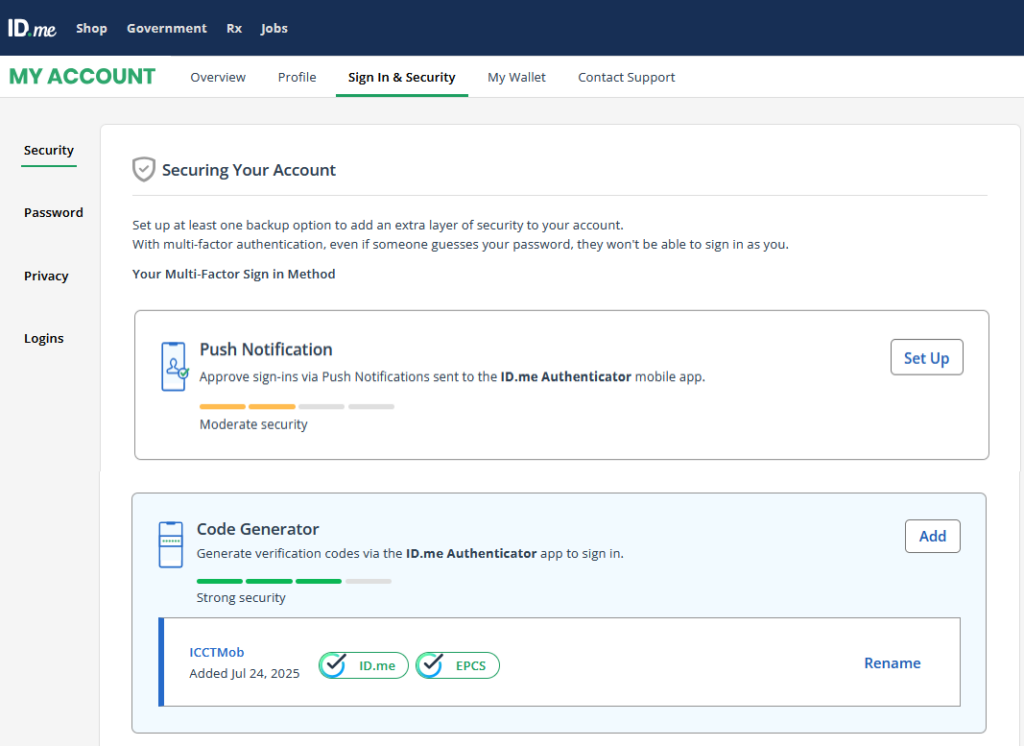
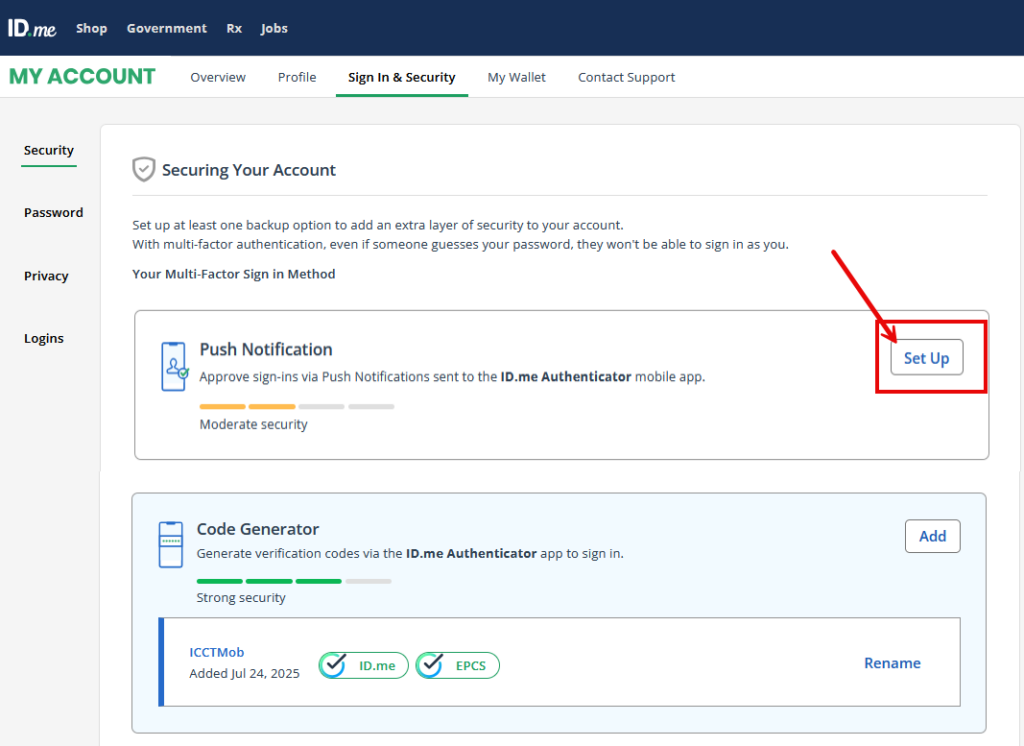
Set up Push Notification or Code Generator as an alternate MFA / 2FA option

1. Select the Set Up button to activate a new or alternative MFA or 2FA option when signing your Controlled Substance prescriptions.

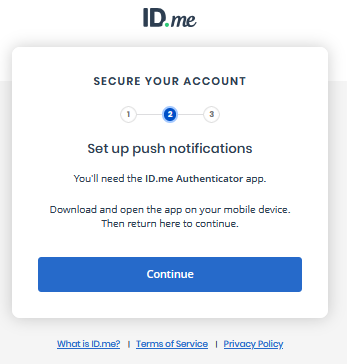
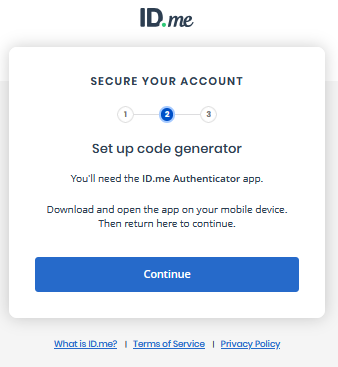
2. A new window will open, click Continue.

Enable Push Notification.

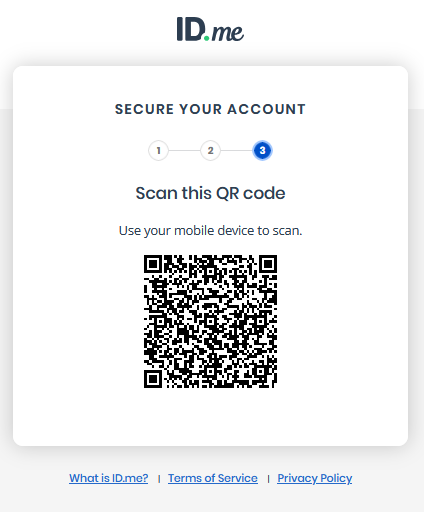
3. Scan the QR code with your smartphone (cellphone).

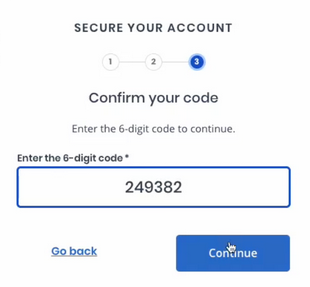
4. Follow the steps on your smartphone (cellphone).

  • If you do not have the ID.me Authenticator app installed, it will direct you to your app store to download the app.
  • Once you have the ID.me Authenticator app installed, scan the QR Code again, it will direct you through the remaining steps to enable.
  • If have the ID.me Authenticator app installed, it will direct you through the remaining steps to enable.

Enable Code Generator.

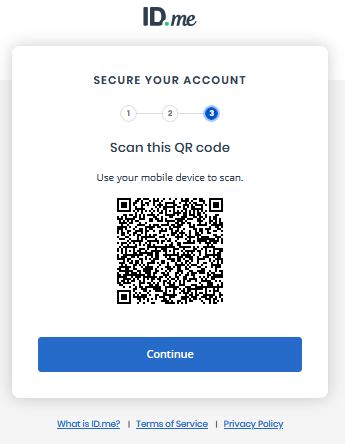
3. Scan the QR code with your smartphone (cellphone).

4. Follow the steps on your smartphone (cellphone).

  • If you do not have the ID.me Authenticator app installed, it will direct you to your app store to download the app.
  • Once you have the ID.me Authenticator app installed, scan the QR Code again, it will direct you through the remaining steps to enable.
  • If have the ID.me Authenticator app installed, it will direct you through the remaining steps to enable.

Manage your MFA / 2FA option

For more information on MFA / 2FA codes and options, please click HERE.

Rename your MFA / 2FA option

If you have more than one MFA / 2FA option or just want to change the name to something more recognizable, follow the steps below:

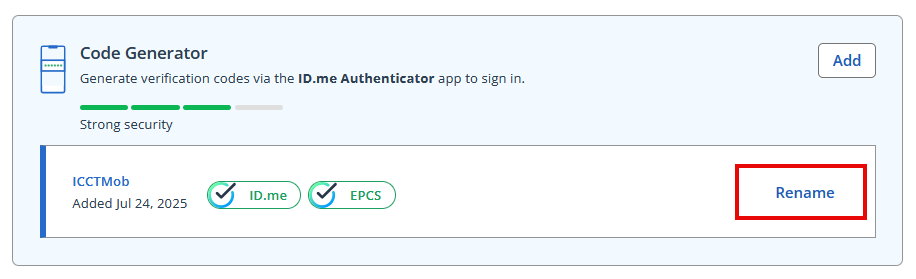
1. Select the Rename button on the right side of the MFA / 2FA option you wish to rename.

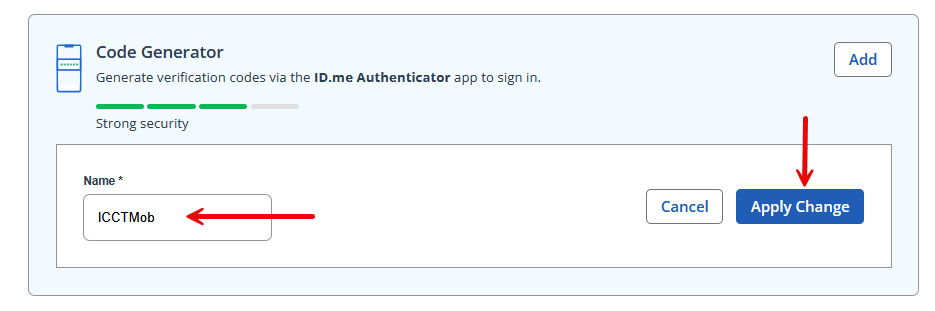
2. Key in the new name inside the Name* field. Select the Apply Change button on the right.

* Steps are the same for either the Push Notification or Code Generator.

* Just be sure if both are enabled, name them something different so you can tell them apart when selecting on the transmit page.

ReSync your MFA / 2FA option

If your MFA / 2FA quit working, you will need to resync your device to your ID.me app.

1. Select the Add button on the right side of the MFA / 2FA option that is no longer working.

2. Scan the QR code with your smartphone (cellphone) and follow the prompts.

3. Be sure not to name it the same as the previous device. If you did my mistake, you can still tell them apart by the “Added Date” below the device name.

4. Remove the OLD device by clicking the Trash Can icon on the right.

* images not currently available.

Add your new Smartphone (cellphone)

Got a New Phone or a new number? Follow the steps below to add and sync your new phone:

1. Select the Add button on the right side of the MFA / 2FA option that is no longer working.

2. Scan the QR code with your smartphone (cellphone) and follow the prompts.

3. Be sure not to name it the same as the previous device. If you did my mistake, you can still tell them apart by the “Added Date” below the device name.

4. Remove the OLD device by clicking the Trash Can icon on the right.

* images not currently available.

Remove your MFA / 2FA option

Got a New Phone or a new number? Follow the steps below to add and sync your new phone:

1. Select the Add button on the right side of the MFA / 2FA option that is no longer working.

2. Scan the QR code with your smartphone (cellphone) and follow the prompts.

3. Be sure not to name it the same as the previous device. If you did my mistake, you can still tell them apart by the “Added Date” below the device name.

4. Remove the OLD device by clicking the Trash Can icon on the right.

* images not currently available.

Troubleshoot Code Generator MFA / 2FA option

I have several codes in the app

If you delete and re-add the code generator MFA on your device, you may see more than one set of codes in the app. To avoid confusion, we recommend using the most recently added code and deleting older codes.

1. Open the ID.me Authenticator app.

2. Find the code you want to delete, swipe left, and select Delete.

3. Confirm by selecting Delete again.


iCoreConnect Contact Information:
You can contact an Implementation Specialist directly via email to implementation@icoreconnect.com, or call 888-810-7706.


Updated on February 27, 2026

Was this article helpful?

Related Articles

Need Support?
Can't find the answer you're looking for?
Contact Support