
This article will cover:
- Staff First Time Logging In
- Staging a Prescription for the Doctor to Review/Transmit
- Adding a Patient’s Pharmacy
- Commonly Used Staff Functions
To view this article as a PDF please click HERE.
Staff First Time Logging In
The following steps MUST be completed by staff upon first logging into iCoreRx. The Prescriber or Doctor MUST log into iCoreRx, prior to staff getting access.
| IMPORTANT: |
|---|
The Prescriber or Doctor MUST log into iCoreRx, prior to staff getting access.
|
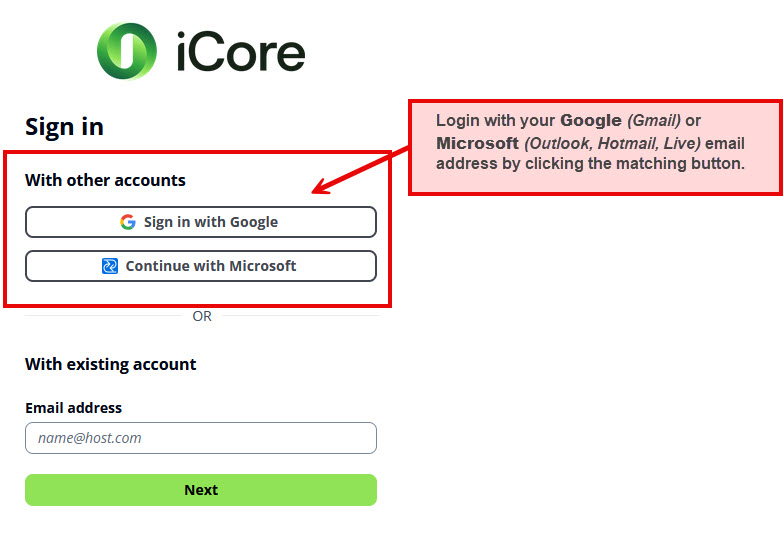
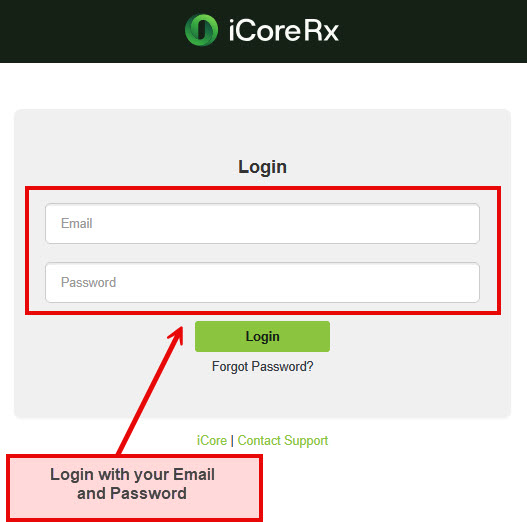
1. Login to your iCoreRx site.
Click Fully Integrated (Eaglesoft, Dentrix and Open Dental) to see how.
Click Semi Integrated (Standalone) to see how.
2. Select the Patient you wish to prescribe for.
Click Fully Integrated (Eaglesoft, Dentrix and Open Dental) to see how.
Click Semi Integrated (Standalone) to see how.
3. Upon first login you should be prompted to select your Prescriber or Doctor.

- If not, navigate to the TASKS page, in the upper right corner.
- Select TASKS
- Select the Prescriber or Doctor

4. Navigate to the Med Entry tab.
5. On the right-hand side, across from Patient Name, Click the drop-down arrow next to Doctor to verify or change the Doctor you will be staging a prescription for.
You are now ready to Stage a Prescription for the Doctor you selected.
If you are at a Practice with Multiple Doctors, you will need to change the Doctor you are prescribing for.
| IMPORTANT: Doctor missing from drop-down |
|---|
If the Prescriber or Doctor is NOT listed in the drop-down.
|
Stage a Prescription for the Doctor to Review/Transmit
Option 1: Select a medication from Quick Rx, formerly Favorites, (Doctor’s templates, has SIG written).
- Click the Quick Rx button to display your Doctor’s Saved Templates, check the box on one or more medications, then click the Queue Rx button.
Option 2: Search by the Generic Drug Name.
- Type in the generic Drug Name and click Drug Search.
- Click on the Drug Name to open the window, FORM options will then be listed.
2. Select the correct FORM, by clicking the blue hyperlink.
3. Click the Edit button, on the right-hand side, to open the Digital Prescription Pad.
- Fill out the Digital Prescription Pad, from left to right.
4. Select Add to Quick Rx to add the prescription as a template in the Doctor’s Quick Rx List.
5. Click Queue Rx to leave the Drug in a Pending status for the Doctor to review and transmit.
6. Select the Pharmacy drop-down.
7. Click Add Pharmacy, to search and select the Patient’s Preferred Pharmacy.
8. Use 1-2 fields as search criteria, then click Search.
9. Click Select on the Patient’s Preferred Pharmacy. The pharmacy will be saved on the Patient’s record.
10. Return to the Med Entry tab, your prescription is now ready for the Doctor to review and transmit to the pharmacy.
Adding a Patient’s Pharmacy
1. Select the Pharmacy drop-down window.
2. Click Add Pharmacy.
3. Select a Pharmacy from the Location List for any pharmacies already entered into your system or use the search boxes.
- Use the Search boxes to locate any Pharmacy in the USA. Enter pharmacy details into the corresponding fields.
- Click the Search button on the left.
| Quick Tip: |
|---|
| Search by the pharmacy’s name and zip code or phone number |
4. Click the Select button next to the Pharmacy you wish to use.
5. The pharmacy is now Saved for that patient. You will now see the Pharmacy is listed on the Med Entry page.
Review of Common Staff Functions
- Manage Your Patient & Location (Favorites) Pharmacy List
- Run Prescriber Reports
- Managing a Patients Active Medications
- Managing a Patient’s Allergies
- Pending or Failed Prescriptions, Pharmacy Messages and Renewals
- How to Manage a Doctor’s (Favorites) List